
IND3 APK for Android
IND3 APK is the Android installation package used to install the IND3 Game App on a compatible phone. This page is focused specifically on downloading, installing, updating and troubleshooting the APK file.
The APK is only the installer. After Android completes setup, users open the installed IND3 App from the device instead of using the downloaded package file again.
For the wider platform overview, return to the IND3 Game homepage.
IND3 APK Details
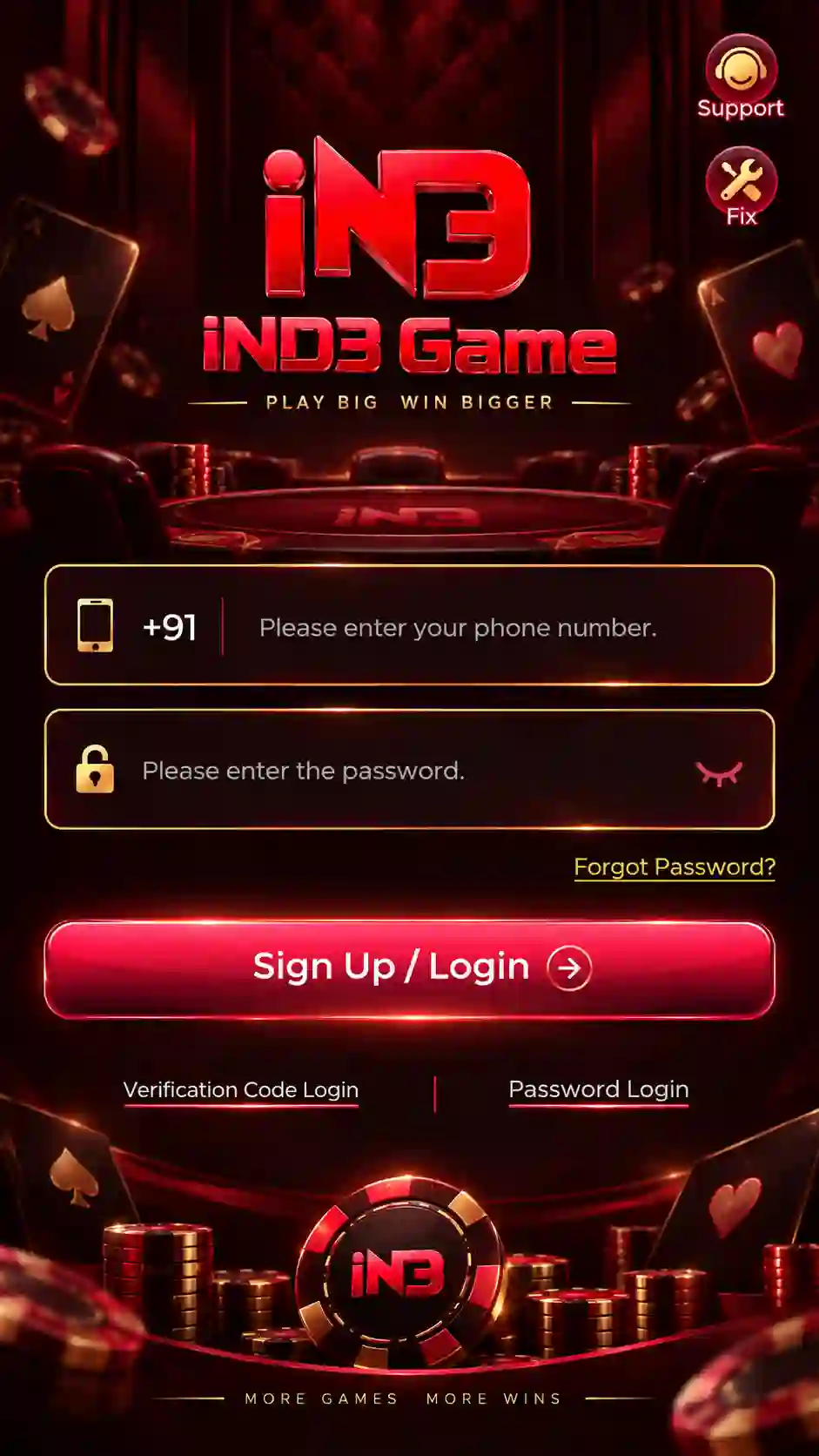
IND3 App Screenshots


What Is an IND3 APK File?
An APK is the Android package file used to install an application from a downloaded file. In the IND3 setup, the APK installs the IND3 Game App on the phone.
APK and App describe two different stages. The APK is the installer; the App is what users open after installation.
Open the IND3 download route, complete the mobile-number step and let the APK finish downloading.
Open the completed file and follow the Android installation permission shown on the phone.
Launch the IND3 App after Android confirms the installation has completed.
Before You Download IND3 APK
A few quick checks can prevent most download and installation failures.
- Use a stable Wi-Fi or mobile-data connection.
- Keep enough free storage on the Android device.
- Allow the APK download to finish completely.
- Avoid downloading several copies at the same time.
- Open the file only after the browser shows that the download is complete.
- Read Android security prompts before allowing installation.
How to Download the IND3 APK File
The IND3 download route uses a mobile-number confirmation step before the Android package begins downloading.
- Tap the IND3 Game Download button.
- Wait for the download page to open.
- Enter your mobile number in the field shown.
- Check the number carefully.
- Tap Confirm.
- Allow the APK download to begin.
- Keep the browser open until the file is fully saved.
- Open the completed file from Downloads or File Manager.
Where to Find the Downloaded APK
After the download is complete, check the browser download history, Android Downloads folder, File Manager or the completed-download notification.
How to Install the APK on Android
1. Open the Downloaded APK
Open Downloads or File Manager and tap the completed IND3 APK file.
2. Review the Android Prompt
Android may open the installer immediately or ask whether the current browser or File Manager is allowed to install downloaded apps.
3. Allow Installation for the Current Source
Enable installation only for the browser or File Manager being used to open the APK.
4. Return to the IND3 APK
After granting permission, return to the downloaded file. Some phones resume automatically; others require the APK to be tapped again.
5. Tap Install
Allow Android to finish installation without switching between multiple APK copies.
6. Open IND3
When Android confirms installation, tap Open or launch IND3 later from the app list.
Why Android Asks for Install Permission
Android can request extra permission when an app is installed from a browser or File Manager rather than directly through an app-store installation.
The setting may appear as Install unknown apps, Allow from this source, Unknown sources or similar wording depending on the phone and Android version.
How to Update the IND3 App with a New APK
When a newer IND3 package is available, Android can often update the existing installation without removing the current app first.
- Download the newer IND3 APK.
- Wait until the file is completely saved.
- Open it from Downloads or File Manager.
- Review the Android update prompt.
- Install the update over the existing app when Android allows it.
- Open IND3 after the update finishes.
If Android refuses the update, first check whether the new APK downloaded completely and whether an existing installation is causing a package conflict.
APK Download & Installation Problems
APK Not Downloading
Check the mobile-number step, internet connection and browser download permission.
Use a stable network and confirm enough storage is available.
Check browser downloads and the Android Downloads folder before starting another copy.
Read the warning and continue only when you intentionally started the IND3 APK download.
APK Not Installing
Allow installation for the browser or File Manager currently opening the APK.
Free some space because Android may need temporary room while unpacking the application.
Delete the failed copy and download one fresh completed file.
Read the Android error and verify the new APK before removing the current installation.
IND3 Does Not Open After Installation
- Close the app and reopen it.
- Check the internet connection.
- Restart the Android phone.
- Check remaining device storage.
- Avoid keeping several different IND3 builds installed at the same time.
APK Safety Checks Before Installation
- Use the APK you intentionally requested.
- Make sure the file downloaded completely.
- Read Android installation warnings.
- Avoid modified or “unlocked” APK copies from unknown sources.
- Do not install APKs claiming hacks, predictors or guaranteed winnings.
- Never share passwords, OTPs or account credentials during installation.
What Happens After Installing IND3 APK?
After Android finishes installation, the APK stage is complete and the IND3 App becomes available in the device's application list.
If this is the first account access, continue with the IND3 Login process using the registered mobile number and verification code.